What is a tab in Serve POS?
At most sports clubs, members don't pay for each drink individually. They grab a beer after training, another at half-time, a coffee before heading home — and settle everything at the end of the evening. Serve POS is built around this pattern.
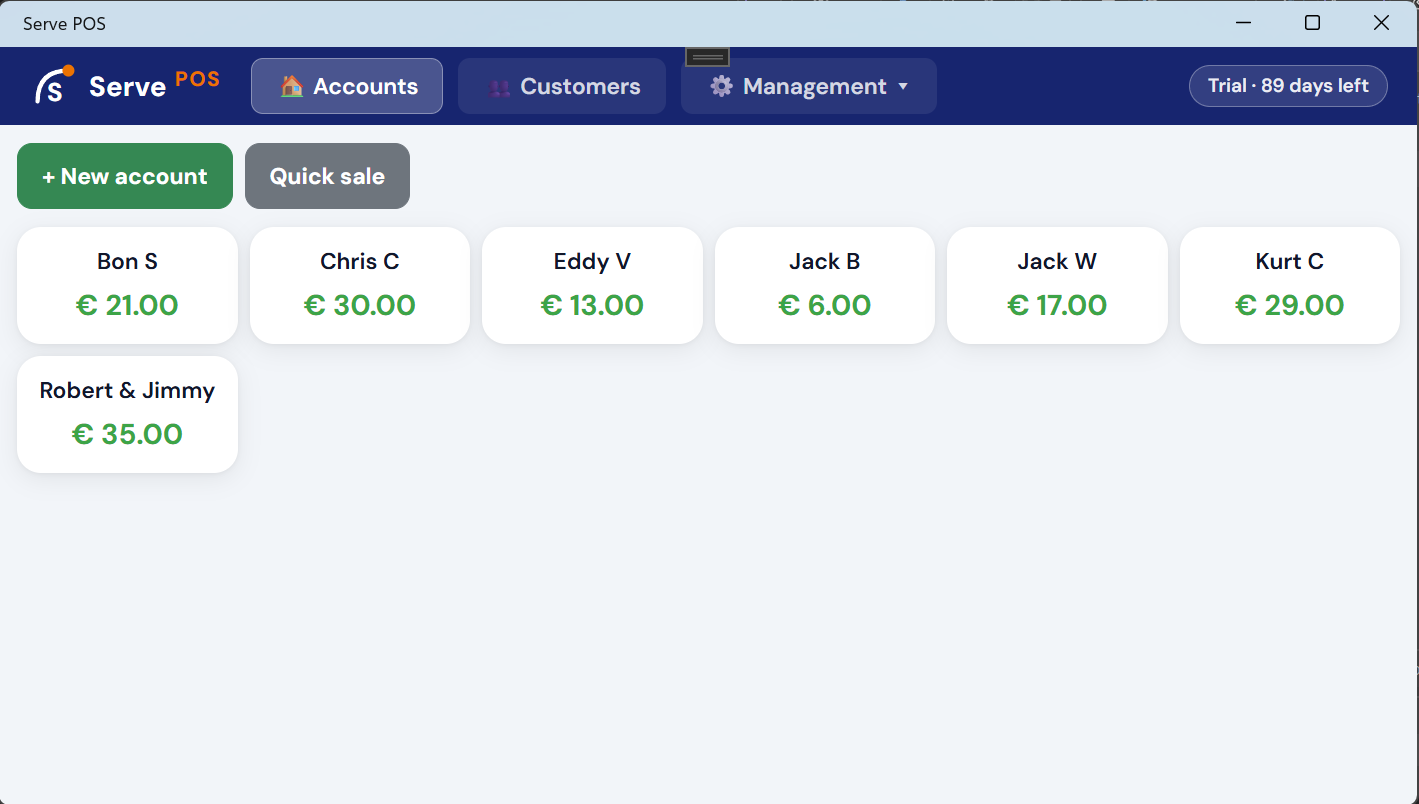
A tab is an open record linked to a person, a team, or a free-text label like "Table 4". The bartender adds products throughout the evening. When the customer is ready to leave, the bartender taps the tab and accepts payment via one of the available payment methods.
Opening a tab
Opening a tab takes two taps. From the main screen, tap New tab, then type a name or select a registered member. The tab opens immediately and the product grid appears, ready for the first order.
You can have as many tabs open simultaneously as you need — one per person, per team, or per table. The overview screen shows all open tabs at a glance with each tab's current total.
Adding items during the evening
Tap a tab to open it, then tap products from the grid. Each product is added as a line item with quantity and price. The running total updates instantly.
Products are organised by category — Drinks, Snacks, Food — so the bartender can find the right item in one tap, even on the busiest evenings. Categories and products are set up once by the club administrator.
If someone adds items and then walks away without saving, the screen does not stay stuck. After a short period of inactivity — one minute by default — the app returns to the overview on its own, first asking what should happen to any items that were not saved yet. The device is free again for the next round.
Tabs that carry over between evenings
For clubs where members run a monthly balance, a tab doesn't need to be settled on the same evening it was opened. Registered members have a persistent tab that stays open across multiple club evenings until they explicitly settle it.
This works well for youth clubs, football clubs, and any association where members build up a balance over time and settle every evening, weekly, monthly, or at the end of the season.
→ Read more about managing regular members
Settling a tab
When a member is ready to pay, tap their tab and tap Settle. The payment screen shows the total and all available payment methods: cash, Bancontact QR, card terminal, tokens, or bank app.
Select the payment method, confirm, and the tab is closed. The payment is recorded immediately and the tab disappears from the overview.
→ Read more about payment methods
Overview and reporting
The main screen shows all open tabs at a glance with their running totals. At the end of the evening, the Reporting screen shows total revenue by payment method and a list of every open tab with its outstanding balance — so nothing gets missed.
The treasurer can export the full report as a CSV file for import into any accounting or spreadsheet tool.