
With Mollie, your customers pay with their debit or credit card on a terminal at the bar, or directly on your Android phone. ServePos passes on the amount itself and records the payment automatically once it succeeds. Here is how to set it up.
Step 1: a Mollie account for your club
Mollie is a European payment provider. Card payments land on your club's Mollie account, and Mollie pays them out to the club's bank account. Does your club already have a Mollie account, for example for a web shop or membership fees? Then simply use that account.
No account yet? Create one at Mollie. Mollie verifies your club before you can receive payments. Keep these details at hand:
- the company number of your non-profit or association
- the details and an ID document of the board members
- the club's bank account, where Mollie pays out
This verification can take a few working days. So start in good time, especially if you want to use the terminal at an event.
Step 2: choose your device
The customer pays on a Mollie card terminal, or directly on your Android device. ServePos works with these devices:
- Mollie Tap — a small, affordable terminal. Handy if you have one till and customers pay at the bar. More at Mollie
- Mobile terminal (PAX A920 Pro) — portable, with Wi-Fi and mobile data. Ideal if you walk around the hall, the terrace or stand at the entrance.
- Fixed terminal (PAX A35) — stays at the bar, with a network cable or Wi-Fi. For a fixed till with lots of payments.
- Tap to Pay on your Android device — the customer taps their card against the phone or tablet running ServePos. No separate terminal needed: install the Mollie Tap app from the Play Store and log in with your club's Mollie account. Your device needs NFC. (The Mollie Tap app is not the terminal of the same name above.)
See all devices and their current prices on the Mollie website. You order a terminal in your Mollie dashboard and activate it there once it arrives; Mollie explains how.
Step 3: connect ServePos to Mollie
In ServePos, go to Configuration → Settings → Payment → + Add payment method → Card (Mollie) and tap Connect with Mollie. Your browser opens Mollie's login page: log in with your club's account and give ServePos permission. Then return to the app.
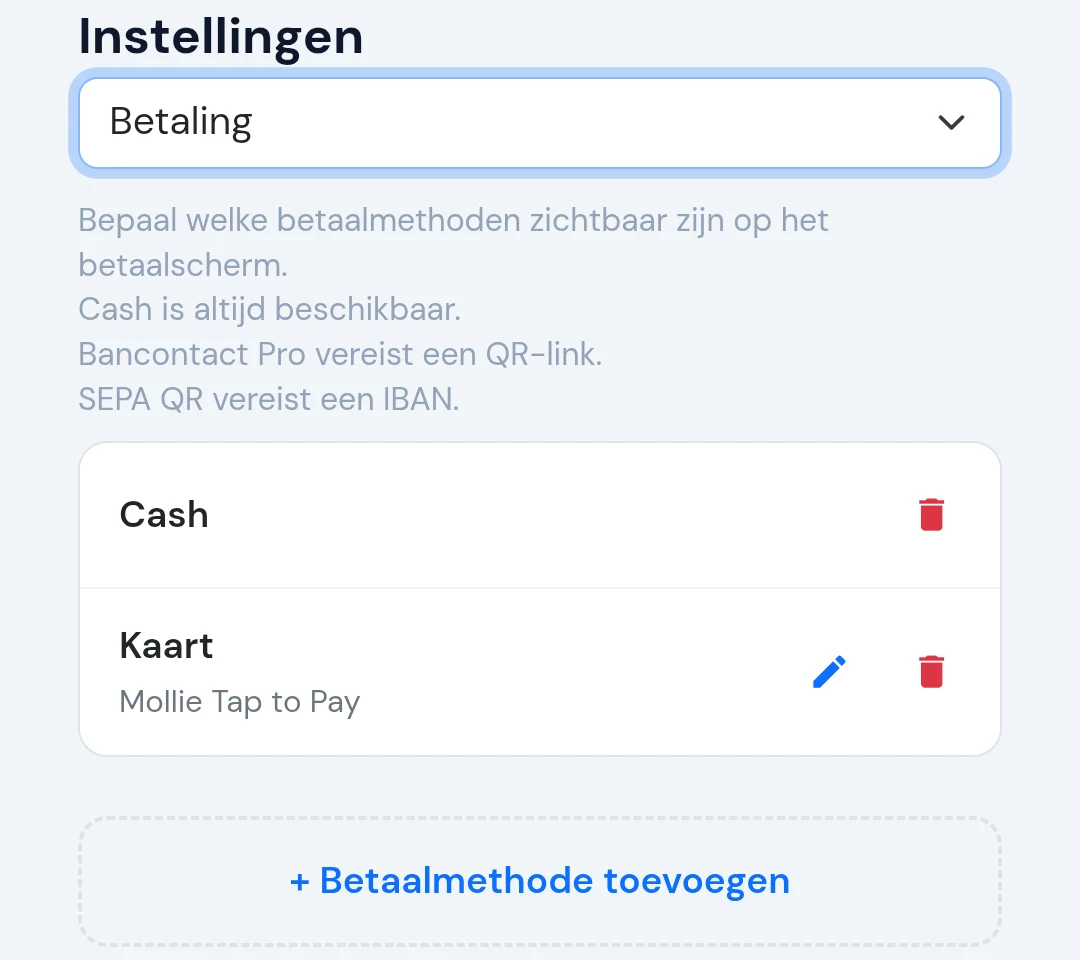
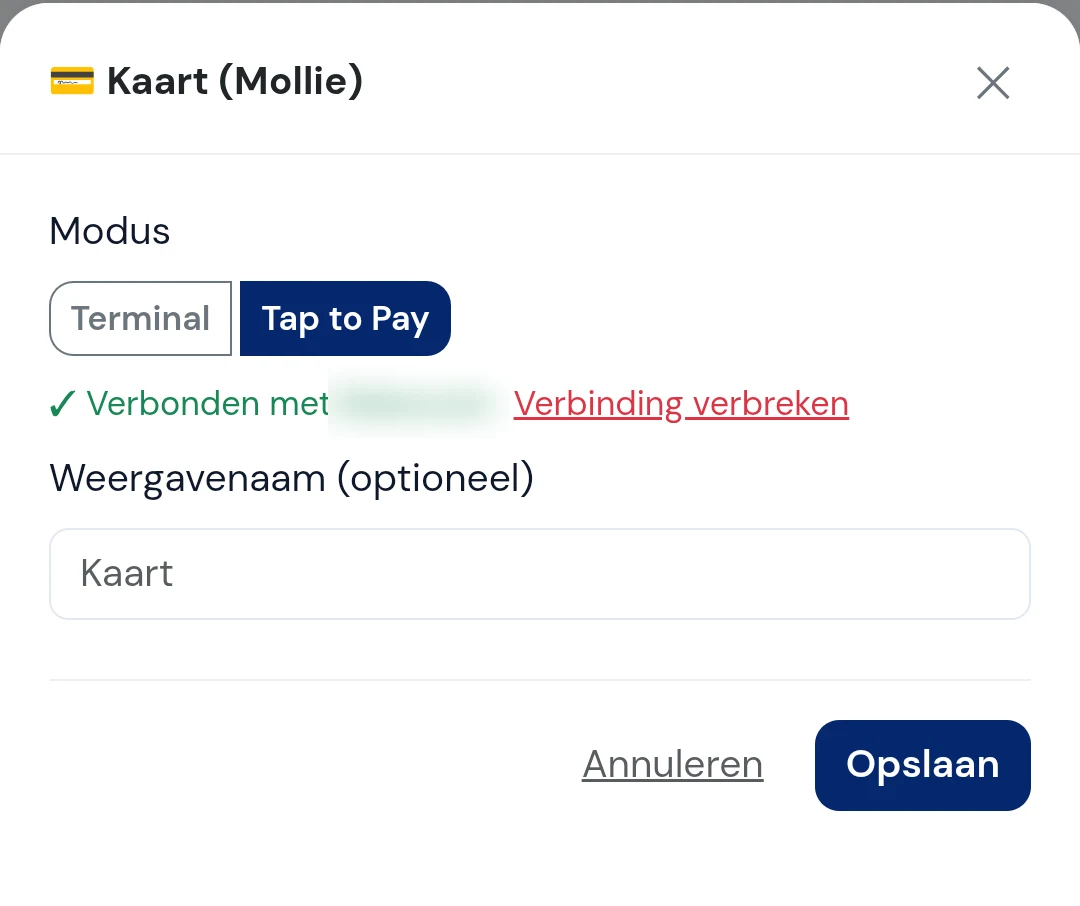
No keys or codes to copy. If you use a terminal, finally use Manage terminals to choose which terminal belongs to this device.
📱 Tap to Pay? Choose Tap to Pay under Mode. No terminal needs to be chosen.
You only connect once per club. If you have several tills, each till simply picks its own terminal.
→ Every screen step by step in the manual
Step 4: make a test payment
Using a terminal? Then tick Test mode in ServePos's Mollie settings and charge a drink by card. In test mode no real money moves: with the Open test page button on the payment screen you choose yourself whether the payment succeeds, fails or expires. That way your volunteers know in advance what they will see on the first evening.
Done testing? Switch test mode off again and choose your terminal again. Note: Tap to Pay has no test mode. Every payment via Mollie Tap is a real payment; you can refund it afterwards via Payment management.
Step 5: take a card payment
On the payment screen the volunteer chooses Card. With a terminal, ServePos sends the amount to the terminal and the customer taps or inserts their card there. With Tap to Pay, the Mollie Tap app opens on the same device and the customer taps their card against the phone. Either way the payment is recorded automatically and nobody has to type in an amount.
Does the app or the Wi-Fi drop out for a moment while the customer pays? ServePos checks the payment with Mollie as soon as it can again, so no payment gets lost. Mollie then pays the money out to the club's bank account.
What does it cost?
Through ServePos you pay the same rates as directly at Mollie. ServePos charges nothing extra on your card payments. Mollie's costs consist of:
- a one-off purchase of a terminal (not needed for Tap to Pay)
- a percentage per card payment, depending on the type of card
- optionally a monthly plan, for example if you use several terminals
See the current in-person payment rates on mollie.com.
Frequently asked questions
We have several tills. Does each till have to connect separately?
No. You connect to Mollie once and all your club's devices use that connection. Each till does pick its own terminal.
Can I refund a card payment?
Yes, via Payment management in ServePos. Mollie refunds the amount to the customer's card.
How do I disconnect?
In ServePos via Card (Mollie) → Disconnect, or in your Mollie dashboard. It applies immediately to all of the club's devices.
Does it work without internet?
No. For a card payment both the ServePos device and the terminal need internet. Cash, tabs and tokens do work offline.
Does it work on Windows too?
With a Mollie terminal, ServePos works on both Android and Windows. Tap to Pay only works on Android devices with NFC.