With a SumUp Solo terminal, your customers pay at the bar with their debit or credit card, or with their phone. ServePos sends the amount to the terminal itself and records the payment automatically once it succeeds. Here is how to set it up.
⚠️ Only the SumUp Solo works. The Solo Lite and the Air are not supported. Already have one of those? Then ServePos cannot send amounts to it. Why?
Step 1: a SumUp account for your club
SumUp is a payment provider for small businesses and associations. Card payments land on your club's SumUp account, and SumUp pays them out to the club's bank account. Does your club already have a SumUp account? Then simply use that account.
No account yet? Create one on the SumUp website. SumUp verifies your club before it pays out. Keep these details at hand:
- the company number of your non-profit or association
- the details and an ID document of the person responsible
- the club's bank account, where SumUp pays out
Start in good time, especially if you want to use the terminal at an event.
Step 2: choose the right terminal
ServePos works with the SumUp Solo. This terminal has its own Wi-Fi connection, so ServePos can send the amount to it over the internet. You can buy it on its own, with a charging dock or with a receipt printer. There is also a version with mobile data (4G), handy if the Wi-Fi does not reach the terrace or the entrance.
Plan one Solo per till. Do you have two tills, for example at the bar and at the entrance? Then buy two terminals.
⚠️ Not every SumUp reader works. The Solo Lite and the Air only connect via Bluetooth to SumUp's own app. ServePos cannot send amounts to them. So choose a Solo.
Step 3: create an API key at SumUp
ServePos talks to SumUp with an API key: a long code that gives ServePos permission to send payments to your terminal. You create it yourself in your SumUp account:
- Log in on me.sumup.com with your club's account.
- Open your profile and choose Settings → For Developers → Toolkit → API Keys.
- Tap Create, give the key a name such as ServePos, and copy the secret key (it starts with
sup_sk_). - Also note your merchant code. It starts with an M and you will find it in your SumUp account settings.
🔒 Keep the key safe. SumUp only shows it once. Treat it like a password: whoever has it can start payments on your account. Lost it? Simply create a new one.
Step 4: add SumUp in ServePos
In ServePos, go to Configuration → Settings → Payment → + Add payment method → Card (SumUp Solo). Paste the API Key, fill in the Merchant Code and tap Validate. ServePos checks with SumUp that both are correct. If you like, give the payment method a name of your own, then tap Add.
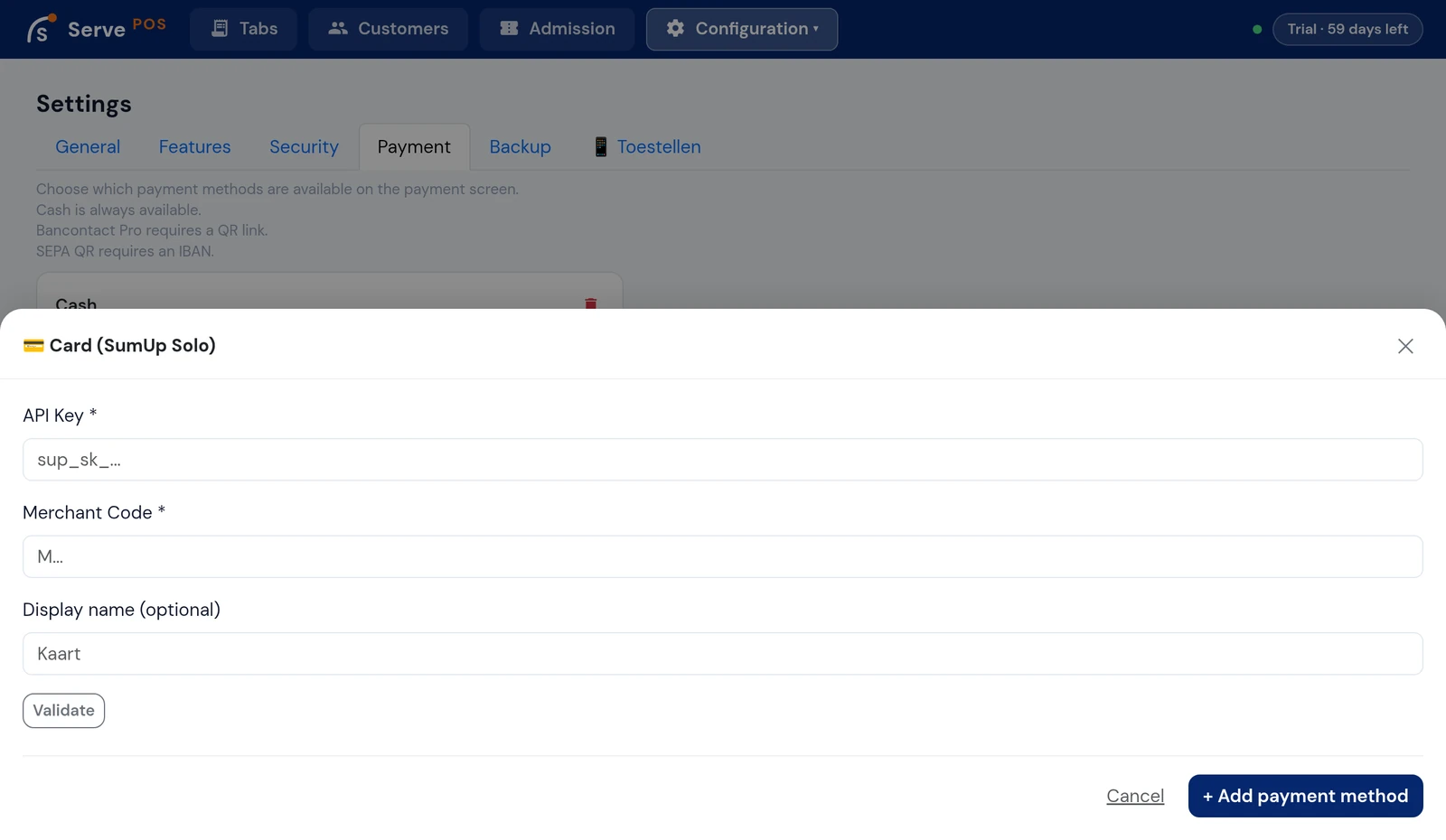
Several tills? Do this on every device that should accept card payments. You can use the same API key and merchant code everywhere.
Step 5: pair the terminal
Now link the Solo to ServePos. First on the terminal:
- Switch the Solo on. Is someone logged in on it? Log out first via the menu: Settings → About → Log out. Pairing only works on a logged-out terminal.
- Open the menu, go to Connections and connect to Wi-Fi.
- Choose API and tap Connect. The terminal shows a pairing code, valid for five minutes.
Then in ServePos, open Manage terminals on the SumUp payment method, tap Pair terminal, type in the code, give the terminal a name (for example Bar) and tap Pair. Finally tap the terminal so it is marked Used by this device.
Each terminal shows whether it is online. Is a terminal asleep? The Wake up button wakes it. With several tills, each till simply picks its own terminal from the list.
💡 One terminal per till. Technically several tills can use the same Solo, but we advise against it. When two volunteers charge at the same time, it is unclear which amount is on the terminal, and the customer might pay someone else's bill. With its own Solo next to each till, volunteer and customer always know where they stand.
→ Every screen step by step in the manual
Step 6: take a card payment
On the payment screen the volunteer chooses Card. ServePos sends the amount to the Solo and the customer taps or inserts their card, or holds their phone against it. As soon as the payment is approved, ServePos records it and closes the tab. Nobody has to type in an amount.
Does the terminal not respond within two minutes? Then the volunteer can try again or choose another payment method.
🧪 Try it first. SumUp has no test mode in ServePos. Before the first evening, charge a small real amount (for example €1) and cancel it straight away via Payment management. That way your volunteers know what they will see.
What does it cost?
Through ServePos you pay the same rates as directly at SumUp. ServePos charges nothing extra on your card payments. SumUp's costs consist of:
- a one-off purchase of the Solo terminal
- a percentage per card payment, without a monthly fee
- optionally a monthly plan with a lower percentage, if you take a lot of card payments
See SumUp's current rates for Belgium.
Frequently asked questions
We already have a SumUp Solo Lite. Can we use it?
No. The Solo Lite (and the older Air) only connects via Bluetooth to SumUp's own app, so ServePos cannot send amounts to it. For ServePos you need a SumUp Solo, or you can choose Mollie.
Can I refund a card payment?
Yes, via Payment management in ServePos, up to 30 days after the payment. SumUp refunds the amount to the customer's card.
How do I stop?
Remove the SumUp payment method in ServePos on each device. To be sure, also delete the API key in your SumUp account: then it can no longer be used anywhere.
Does it work without internet?
No. For a card payment both the ServePos device and the Solo need internet. Cash, tabs and tokens do work offline.
Does it work on Windows too?
Yes. With a SumUp Solo, ServePos works on both Android and Windows.
Mollie or SumUp?
Both work well. With Mollie you connect in one tap without an API key, and Android devices can also accept Tap to Pay. Already have a SumUp account or a Solo? Then SumUp is the quickest start. Read the Mollie guide.